
Overview
Automation Agents let you automatically respond to reviews that match specific triggers. Instead of replying manually, you can create Agents that identify eligible reviews and send the appropriate reply on your behalf.
This article explains how to create an Automation Agent, define its scope, and manage your Agents.
If you would like to use Automation Agents together with the Zendesk App integration, please refer to the article, please refer to Automation Agents in AppFollow with Zendesk Native App Integration for setup instructions and best practices.
Requirements for Automation Agents to Work
- The app has an active Reply to Review Source Connection.
- The review matches the Automation Agent scope.
- The review has not already been replied to in the store.
Automation Agents run every 10 minutes.
The following user roles can create and manage Automation Agents:
- Admin
- User
- Support manager
To learn more about user roles and their permissions, see our User Roles article.
Available Automation Agents
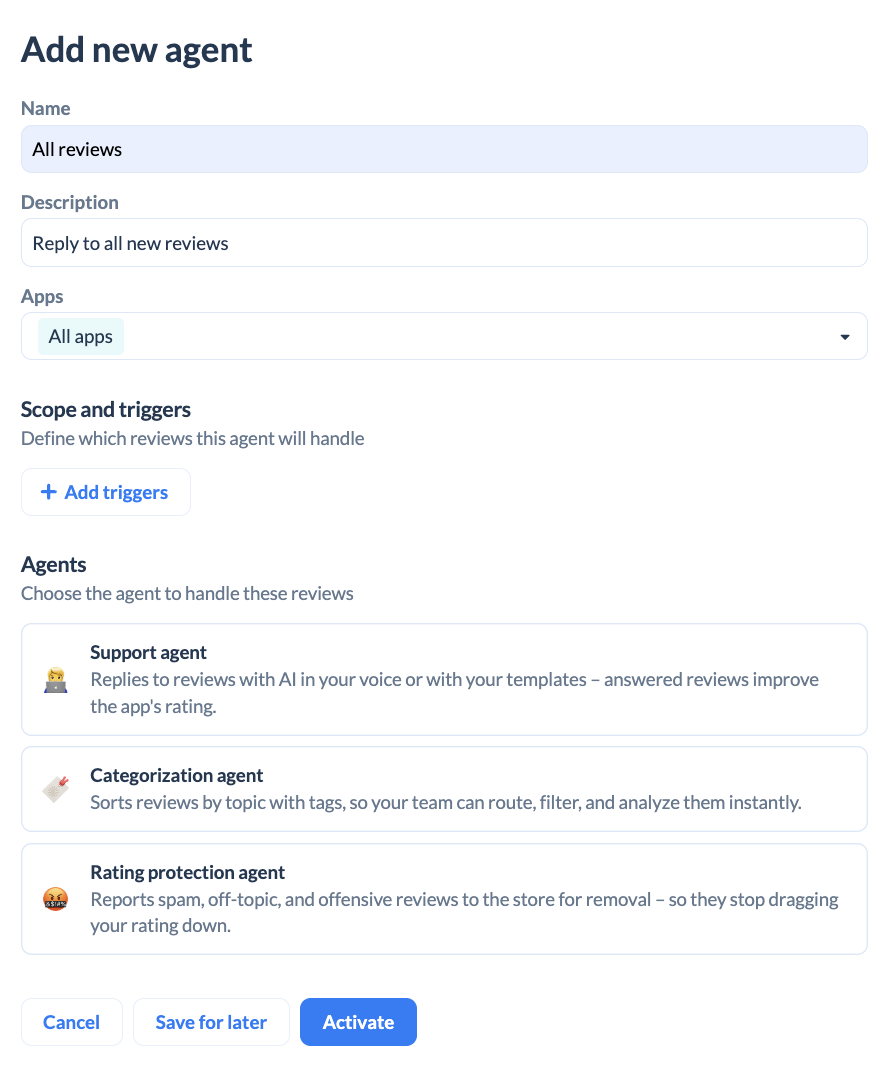
-
Support Agent
Communicates with customers by generating AI-powered replies or using predefined templates to provide fast, consistent responses. -
Categorization Agent
Organizes and manages conversations by automatically identifying topics and applying relevant categories or tags. -
Rating Protection Agent
Helps protect customer ratings by detecting potential issues and addressing customer concerns before they escalate.
How to Set Up Automation Agents
- Go to Reviews → Manage Reviews → Automation Agents.
- Click + Add New Rule in the top-right corner, or choose a pre-built agent from the Agent Library.
- Enter a name and description for your automation rule.
- Define the scope by configuring the triggers and conditions that determine which reviews the agent will handle. For more details, see our article on Automation Agents Scope and Triggers.
Select the agent that will process matching reviews:
Support Agent
Categorization Agent
Rating Protection Agent- Click Save for later, or Activate to enable the rule immediately.
- When activating the rule select how far back the agent should process reviews:
- Last 1 month
- Last 3 months
- Last 6 months
- Last 12 months
Support Agent
The Support Agent helps automate responses to routine feedback using AI-generated responses or predefined templates.
Powered by OpenAI, the AI Support Agent generates unique responses for each review by analyzing its content, sentiment, and tone. It can leverage your knowledge base and configured reply style to create relevant, contextual, and personalized responses. This helps support teams efficiently manage large volumes of repetitive feedback while maintaining a consistent brand voice.
The Template Support Agent responds using predefined templates. You can assign a specific template or allow the agent to randomly select one from a template folder. AI can also rephrase or translate template-based responses to better match the review's language and context while preserving the intended message.
Availability of Automated Agents depends on your plan. Please refer to the pricing page or contact us for details.
AI Support Agent
The AI Support Agent is ideal for handling large volumes of routine feedback while maintaining consistent, relevant, and personalized communication.
Template support agent
To set up a Template Support Agent, first create Reply Templates. Learn more in our Reply Templates article.
Choose how the agent should use templates:
- Specific Template: Sends the selected template to every review within the agent’s scope.
- Random Template from a Folder: Selects a template randomly from a folder, helping avoid repetitive responses and making replies feel more natural.
Organize templates into Template Folders by topic or language to build a reusable library of responses for different review scenarios.
AI Rephrase and AI Translate
With the Rephrasing and Translating tools, you can automatically generate varied and personalized replies, significantly enhancing the quality and effectiveness of your responses.
- Rephrase Templates with AI: Automatically generate variations of existing reply templates, ensuring that responses are less repetitive and more personalized.
- Translate Templates with AI: Automatically translate reply templates into different languages, making it easier for global teams to manage reviews.
These features are available exclusively for Enterprise plan users, as they are part of the automation tools included in this tier.
How does AI Support Agent differ from AI Rephrase and AI Translate
While all three features use AI, they serve different purposes:
- AI Support Agent generates a reply from scratch based on the review—no template needed.
- AI Rephrase rewrites an existing reply template.
- AI Translate translates an existing reply template into the language of the review.
Categorization Agent
Categorization Agent automatically tags reviews based on predefined scope and triggers, helping teams organize feedback, identify trends, and route issues more efficiently.
Categorization Agent automatically analyzes incoming reviews and applies tags when triggers are met. Rules run every 10 minutes to keep reviews organized shortly after they arrive.
With the Zendesk App integration, applied tags are synced to Zendesk tickets for consistent categorization across platforms.
Rating protection agent
Automatically report spam, off-topic, and offensive reviews to the store to save time and protect your app rating. Set up Rating protection Agent to detect reviews that match specific criteria, such as offensive language or low ratings, and report them automatically.
💡 By default, all accounts include a standard "Report a Concern" Template Folder that you can use with Rating Protection Agent. You can also create custom templates tailored to specific review scenarios.
Copying Agents between Workspaces
You can copy a specific Automation Agent from one workspace to another in just a few clicks.
To do this, go to the Automation Agents page and locate the agent you want to copy. Next to the agent name, you will see three action buttons. Select the middle button with the copy icon.
After clicking the copy button, a pop-up window will appear asking you to select the workspace where you want to copy the Automation Agent. Choose the destination workspace and click "Copy".
That's it! Your Automation Agent has been copied to the selected workspace and is ready to use.